Salli works best when its first screen answers one practical question: what can I spend today without creating a problem before payday?
That number needs a little context. This guide sets up the context, adds a transaction, and explains the permissions you will see on Android.
1. Choose a language
The first screen offers English, Sinhala, and Tamil. The choice changes the interface immediately and can be changed later in Settings.
Sinhala and Tamil are available throughout the main flows, but the current translations are beta drafts. If a sentence feels mechanical or unclear, please report the screen and the wording. Native review is still in progress.
2. Set the payday cycle
Choose the day your main income normally arrives. Salli builds a cycle from one payday to the day before the next. If your income does not follow a monthly salary, choose the day that best represents when you want the budget to reset.
You can edit this later by tapping the date range on Home or by opening Settings and choosing Cycle setup.
Cycle setup includes:
- expected income
- a savings reserve
- a cycle spending limit, if you want a hard cap
- committed budgets and approved recurring payments
- Seettu contributions due before payday
Actual spending is never typed into this setup. It comes from confirmed transactions.
3. Read Safe to Spend
Safe to Spend is a daily allowance, not the money currently in a bank account. Salli begins with the cycle pool, subtracts reserves and commitments, then spreads the remaining amount across the days left before payday.
Tap the information icon on the card to see the inputs. If the result is zero, check expected income, the payday date, the cycle spending limit, and whether large commitments have reserved the pool.
The number changes as soon as a transaction is confirmed or a planning value is edited.
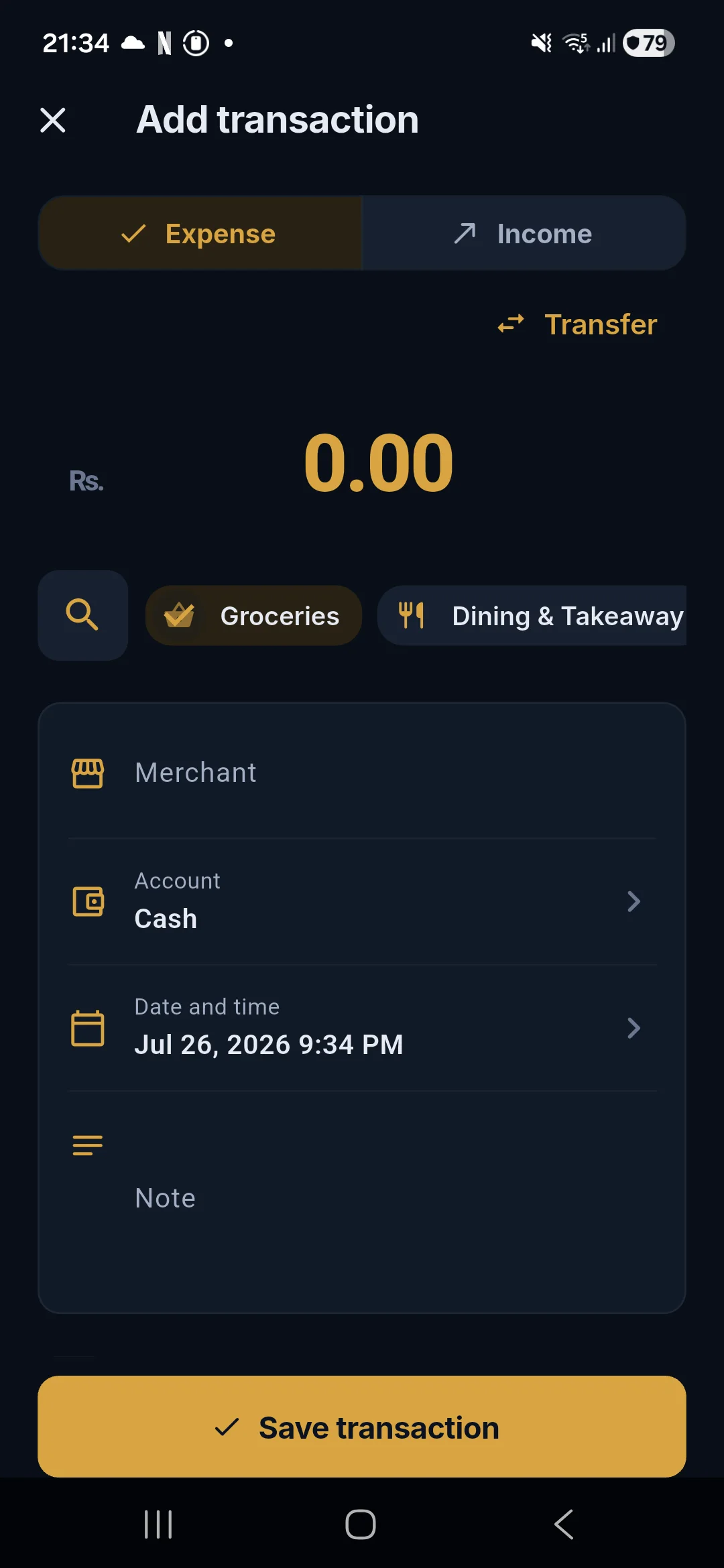
4. Add a manual transaction
Tap the gold plus button from the main navigation.
- Choose Expense or Income.
- Enter the amount.
- Pick a recent category, or tap the search button to find another one.
- Add the merchant if it helps future categorisation.
- Choose an account and check the date.
- Add a note or labels if useful.
- Tap Save transaction.
Income can use built-in categories such as Salary, Freelance, Gift, or Sales. The category manager also allows custom names, colours, and icons for both income and expenses.
5. Decide on SMS access
On Android, Salli can process normal transaction SMS. Permission is optional. Without it, every manual feature still works and the SMS Lab can test pasted messages without reading the inbox.
If SMS permission is enabled, the app can:
- import recent supported transaction alerts from the inbox
- receive new standard SMS while open
- process a new SMS with a short WorkManager job while in the background
- show a private notification when a transaction is ready for review
Salli does not continuously poll the inbox. RCS chat messages are not exposed through the Android SMS broadcast, so they cannot be captured by this flow.
6. Review before trusting a transaction
SMS items arrive as pending reviews. Compare the amount, merchant, category, account, and date with the original message. Edit anything that is wrong, then confirm it.
A category correction for a named merchant can become a local personal rule. The next matching merchant will use that category. Other edits do not train the parser silently.
If a message is not a transaction, choose Ignore. Use Always ignore only when future messages with the same pattern should be excluded.
7. Know where the data lives
The transaction database is encrypted on the phone. Salli has no sign-up screen and no cloud account in the current beta. App lock can be enabled in Settings using the device biometric or PIN.
Data export is available under Settings. Delete everything removes local app data after explicit confirmation.
A good first ten minutes
For a useful first session, set the payday date, add expected income, create one expense and one income, then open Insights. Add one category budget after that. The charts are more meaningful once at least a few confirmed transactions exist.
Next, read Automatic SMS tracking in Salli.